
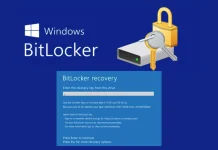
Microsoft Confirms Windows 11 Updates May Force Users to Enter BitLocker Recovery Key
Unexpected Prompts: Windows 11 Updates May Demand BitLocker Recovery Keys
Imagine this: you’ve just installed the latest Windows 11 updates, expecting enhanced security and performance, only to be unexpectedly locked out of your system, demanding a BitLocker recovery key. This isn’t a hypothetical scenario, but a real-world issue confirmed by Microsoft. A recent acknowledgement by the tech giant highlights a significant inconvenience for many Windows 11 users, particularly those with specific BitLocker configurations.
The core of the problem lies with certain BitLocker Group Policy configurations interacting adversely with recent cumulative updates. This post will delve into the specifics of this issue, the affected updates, and critical steps users can take to mitigate potential disruptions.
The BitLocker Recovery Key Conundrum
Microsoft has officially recognized an issue where Windows 11 devices running particular BitLocker Group Policy configurations may unexpectedly prompt users to enter their BitLocker recovery key after installing specific cumulative updates. This isn’t a security vulnerability per se, but rather a functional disruption that can be highly inconvenient. Users who do not have their recovery key readily available could face significant downtime and data access issues.
Affected Updates and Group Policy Interaction
The acknowledged issue specifically impacts devices after installing either of two April 2026 Patch Tuesday cumulative updates: KB5083769 or KB5082052. Microsoft added this known issue to the documentation pages for both updates, signaling its widespread impact. The trigger appears to be the interplay between these updates and certain BitLocker Group Policy settings. While the exact configurations aren’t explicitly detailed, it suggests a scenario where the update process might temporarily alter the perceived integrity of the system, leading BitLocker to believe a recovery action is necessary.
Remediation Actions and Best Practices
While Microsoft investigates a permanent fix, users and system administrators can take several proactive and reactive measures to manage this situation:
- Locate Your BitLocker Recovery Key: This is paramount. Before installing any Windows updates, especially for systems with BitLocker enabled, ensure you know where your recovery key is stored. Common locations include your Microsoft account, a USB flash drive, a printout, or within Active Directory (for domain-joined devices).
- Delay Updates (Where Possible): If your organization has strict BitLocker policies, consider delaying the installation of KB5083769 and KB5082052 until Microsoft releases a definitive patch or workaround. Implement a phased rollout to identify potential issues in a controlled environment.
- Review BitLocker Group Policies: System administrators should review their BitLocker Group Policy configurations, particularly those related to TPM validation profiles and recovery options. Identifying any non-standard or highly restrictive settings could be a clue.
- Understand BitLocker Pre-Boot Authentication: If your BitLocker configuration includes pre-boot authentication (e.g., requiring a PIN or USB drive at startup), ensure these are functioning correctly and that users are familiar with the process. Unexpected prompts related to the recovery key can sometimes be confused with pre-boot authentication failures.
- Backup Critical Data: While not a direct solution to the BitLocker prompt, regularly backing up critical data is a fundamental cybersecurity best practice that can mitigate the impact of any system access issues.
Avoiding Future Disruptions
This incident underscores the importance of a robust update management strategy. For organizations, this means:
- Testing Updates: Implement a strategy for testing Windows updates on a subset of machines before widespread deployment. This allows for the identification of compatibility issues, such as this BitLocker conflict, in a controlled environment.
- Monitoring Microsoft’s Communications: Stay vigilant for official communications from Microsoft regarding known issues, patches, and workarounds. Their documentation pages for KBs are often the first place such issues are acknowledged.
- Educating Users: Ensure users are aware of BitLocker’s function, how to locate their recovery keys, and what to do if they encounter a recovery prompt. User education is a critical, yet often overlooked, layer of defense.
Mitigation Tool
| Tool Name | Purpose | Link |
|---|---|---|
| BitLocker Recovery Key Viewer | Utility to help locate and view BitLocker recovery keys stored in Active Directory. | Microsoft Documentation (General) |
| Group Policy Management Console (GPMC) | For IT professionals to review and adjust BitLocker-related Group Policies. | Microsoft Documentation (GPMC) |
Conclusion
The acknowledged issue of Windows 11 updates potentially triggering BitLocker recovery key prompts highlights the intricate relationship between operating system updates and security features. While not a security vulnerability in terms of unauthorized access, it presents a significant usability challenge. Proactive measures such as ensuring recovery keys are accessible, implementing careful update testing, and reviewing Group Policy configurations are essential to maintain operational continuity and a smooth user experience. Staying informed through official channels remains the best defense against unexpected disruptions in the ever-evolving landscape of operating system management.