Configuring VLANs on Cisco Switches: A Step-by-Step Guide
Configure VLANs on a Cisco Switch: VLAN Configuration Step-by-Step Guide
In this step-by-step guide, we will explore how to configure VLANs on a Cisco switch. VLANs, or virtual local area networks, are essential for network segmentation and management. By understanding and implementing VLAN configuration, you can enhance network security, improve performance, and simplify network administration. Whether you’re new to networking or looking to refine your skills, this guide provides the configuration steps needed to effectively utilize VLANs on Cisco Catalyst switches.
Understanding VLANs
What is a VLAN?
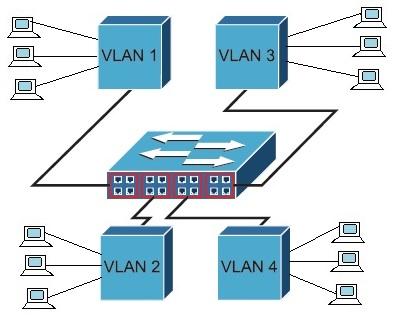
A VLAN, or virtual local area network, logically segments a physical network into broadcast domains. By using VLANs, you can group devices together regardless of their physical location. Each VLAN acts as its own separate network, enhancing security and reducing network congestion. A VLAN tag is added to the Ethernet frame to identify which VLAN the frame belongs to. This allows switches to properly forward traffic only to the ports within the same VLAN. The concept of VLANs is critical in modern network design.
Benefits of Using VLANs
Here are several key benefits to using VLANs. They provide a range of advantages, including:
- Enhanced network security by isolating traffic. Different VLANs can be used to separate sensitive data, such as financial records, from other less critical network segments.
- Improved network performance by reducing the size of broadcast domains. Instead of every device on the network receiving every broadcast, only devices within the same VLAN do.
- Simplified network administration, allowing for easier management and troubleshooting of network issues.
Types of VLANs
Cisco switches support various types of VLANs, each serving a specific purpose. The default VLAN, often VLAN 1, is present on all Cisco switches by default. An access VLAN is assigned to a port that carries traffic for only one VLAN. A trunk port, on the other hand, carries traffic for multiple VLANs. Additionally, there are voice VLANs, designed to prioritize voice traffic for better call quality. Understanding these different types of VLANs is crucial when you configure VLANs on Cisco devices.
Getting Started with Cisco Switches

Overview of Cisco Switch Models
Before you configure VLANs on a Cisco switch, it’s essential to understand the different Cisco switch models available. Cisco Catalyst switches come in various series, each designed for different network sizes and requirements. From the 2960 series for small businesses to the 9000 series for enterprise networks, each model has unique features and capabilities. Familiarize yourself with the specifications of your specific Cisco switch model to ensure optimal VLAN configuration and performance. Proper selection ensures the best VLAN experience.
Choosing the Right Cisco Switch
Selecting the right Cisco switch is crucial for effective VLAN configuration. Consider factors such as the number of ports needed, the required throughput, and the level of security features. A Cisco switch with sufficient ports will allow you to assign devices to different VLANs without limitations. Also, ensure that the switch supports the necessary VLAN standards and protocols. Making an informed decision will streamline your VLAN configuration steps and improve your overall network performance when you configure VLANs.
Preparing Your Network for VLANs
Before you begin to configure VLANs, proper planning is essential. Start by mapping out your network topology and identifying which devices should belong to which VLANs. Consider factors such as departmental separation, security requirements, and traffic patterns. Assigning a unique VLAN number and descriptive name to each VLAN will simplify management and troubleshooting. Preparing a detailed plan beforehand will ensure a smooth and efficient VLAN configuration process on your Cisco switch. Don’t jump into the configuration without preparing.
Step-by-Step VLAN Configuration
Accessing the CLI on a Cisco Switch
To configure VLANs on a Cisco switch, you must first access the command-line interface (CLI). You can access the CLI via console cable, Telnet, or SSH. Once connected, you’ll typically enter the enable mode by typing “enable” and providing the enable password. From there, you can enter global configuration mode by typing “configure terminal”. This mode allows you to make changes to the switch’s configuration, including creating and managing VLANs. Ensure you have the necessary credentials before attempting to access the CLI.
Creating VLANs on a Cisco Switch
Creating VLANs is the first step in VLAN configuration. In global configuration mode, there are several key steps to follow when creating a VLAN:
- Use the “vlan” command followed by the VLAN number to create a VLAN. For example, “vlan 10” will create a VLAN with an ID of 10.
- You can also assign a name to the VLAN using the “name” command, such as “name Marketing.”
- Repeat this process to create VLANs for each of your desired network segments.
Use the “show vlan brief” command to verify that the VLANs have been successfully created on the Cisco switch.
Assigning Ports to VLANs
After creating VLANs, the next step is to assign ports to these VLANs. To accomplish this, follow these steps:
- Enter the interface configuration mode for the specific port you want to configure by using the command “interface” followed by the interface name (e.g., “interface GigabitEthernet0/1″).
- Use the “switchport mode access” command to set the port to access mode.
- Assign the port to a VLAN using the “switchport access vlan” command followed by the VLAN number (e.g., “switchport access vlan 10” to assign the port to VLAN 10).
Advanced VLAN Configuration

Configuring VLAN Trunks
VLAN trunks are essential for carrying traffic of multiple VLANs between Cisco switches. To configure a trunk port, you must first enter interface configuration mode for the interface you want to configure. Use the “switchport mode trunk” command to set the port to trunk mode. Then, use the “switchport trunk allowed vlan” command to specify which VLANs are allowed on the trunk. For instance, “switchport trunk allowed vlan 10,20” allows only VLAN 10 and VLAN 20. Properly configured trunk ports ensure efficient communication between switches.
Implementing Inter-VLAN Routing
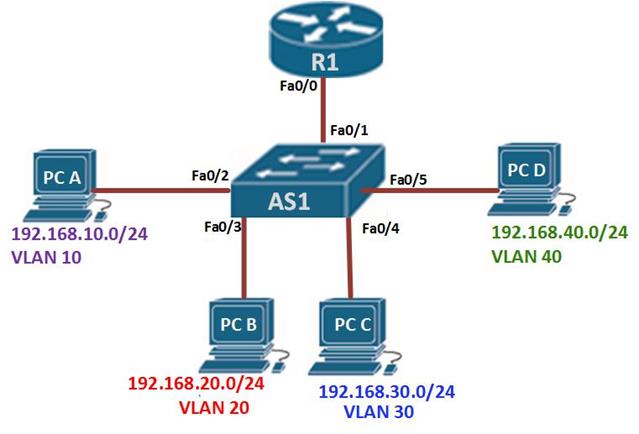
Inter-VLAN routing is necessary for communication between different VLANs. Since VLANs are logically separated, traffic cannot flow directly between them without a router or a Layer 3 switch. To enable inter-VLAN routing, you can configure a router with sub-interfaces, each assigned to a VLAN, or use a Layer 3 switch that supports routing capabilities. Configure the interface with an IP address in the subnet of the VLAN, and enable routing. This setup ensures that devices in different VLANs can communicate seamlessly and securely through the routed interface.
Testing and Troubleshooting VLANs
After you configure VLANs, thorough testing and troubleshooting are crucial. Use the “show vlan brief” command to verify VLAN membership and status. To test connectivity between devices in different VLANs, use the “ping” command. If connectivity issues arise, check the VLAN assignments, trunk configuration, and routing settings. Ensure that the switchport access vlan is correctly set. Also, verify that the inter-VLAN routing is properly configured. Regular testing and systematic troubleshooting will help maintain a stable and efficient network with proper VLAN configuration.
Best Practices for VLAN Configuration
Documentation and Change Management
Maintaining thorough documentation of your VLAN configuration is essential for effective network management. Document each VLAN, its purpose, assigned ports, and any specific configuration details. Implement a change management process to track any modifications to the VLAN configuration. This ensures that all changes are documented and approved before implementation. Proper documentation and change management practices simplify troubleshooting, prevent misconfigurations, and improve overall network stability for VLAN-based networks on Cisco switches.
Security Considerations
Security is a paramount concern when implementing VLANs. Use different VLANs to isolate sensitive data and restrict access to critical resources. Configure access control lists (ACLs) on routers or Layer 3 switches to control traffic flow between VLANs. Disable unused ports and assign them to an isolated VLAN to prevent unauthorized access. Regularly review your VLAN configuration and security policies to address potential vulnerabilities. Implementing robust security measures enhances the protection of your network and data when you configure VLANs.
Regular Maintenance and Updates
Regular maintenance and updates are crucial for maintaining optimal VLAN performance. Periodically review your VLAN configuration to ensure it aligns with your network requirements. Apply firmware updates to your Cisco switch to address bug fixes and security vulnerabilities. Monitor network traffic and performance to identify any potential issues. By performing regular maintenance and updates, you can ensure that your VLAN infrastructure remains stable, secure, and efficient on your Cisco Catalyst switches. This is particularly important for networks with multiple VLANs.

How do I configure VLANs on a Cisco switch: step by step guide to configure vlan on cisco switch
To configure VLANs on Cisco Catalyst switches using the command line interface, start with step 1 by entering global configuration mode (enable -> configure terminal), then create the vlan (vlan and name ) to perform vlan creation. Step 2 is to assign switch ports to the vlan using interface range followed by switchport mode access and switchport access vlan for an access port or configure trunk ports with switchport mode trunk and trunk native vlan as needed. Step 3 includes verifying vlan configuration on cisco with show vlan brief or show vlan name status ports —- and saving the configuration with write memory. This step by step guide covers single vlan or two vlans setups, voice vlan configuration for IP phones, and how to assign access vlan 2 or other specified vlan membership mode settings.
Can I configure VLAN on a Cisco switch to allow vlan communication between pcs in different vlans?
VLANs on Cisco switches segment a network and by default pcs in different vlans cannot communicate. To enable inter-vlan routing you need a Layer 3 device such as a router or a Layer 3 switch (or SVI on Catalyst switches) configured with interfaces or interface vlan and IP addressing. This network configuration allows specified vlan traffic to route between vlans while preserving vlan membership mode and any trunk native vlan settings used to connect switches and ports to other switches.
What are the vlan configuration steps to assign a specific vlan to switch ports on Catalyst switches?
On Catalyst switches the vlan configuration steps are: (1) create the vlan on the switch (vlan and name), (2) select the physical switch port(s) with interface or interface range, (3) set the port as an access port with switchport mode access and assign the port to the vlan using switchport access vlan , and (4) verify with show interfaces status and show vlan brief. For trunks used to connect switches running multiple vlans, configure switchport mode trunk and specify allowed vlans and the trunk native vlan when necessary.
How do I learn how to configure voice vlan and private vlans on a cisco switch?
To configure voice vlan, first create the data vlan and voice vlan, then on the access port use switchport voice vlan alongside switchport access vlan so IP phones can tag voice traffic while PCs remain in the single vlan data. For private vlans you must configure primary and secondary private vlans on supported hardware and map ports to isolated or community secondary vlans to control which devices belongs to vlan segments. These features are commonly covered in cisco ccna and higher-level guides and require specific commands per platform.
What show commands help verify vlan configuration on cisco and confirm which ports belong to vlan?
Useful verification commands include show vlan brief, show vlan name status ports —-, show interfaces switchport to see switch port mode and access vlan, and show running-config to review the configuration steps. Use show mac address-table vlan to confirm pcs in different vlans or specified mac addresses and show spanning-tree vlan to check topology and ports used to connect switches. These commands help with understanding how to configure and troubleshoot vlan cisco deployments on a physical switch.